Organization administrators can directly manage which stakeholders (i.e. school leaders, teachers, board members, etc.) have access to the BOLD Improvement Portal. Organization administrators also can adjust which Reports and what level of data each user has permission to view.
TABLE OF CONTENTS
- My Org Page
- How to Add New Users
- How to Edit a User
- Report Permission Groups
- How to Remove a User
- Troubleshooting
_____________________________________________________________________________________________________________________________________
My Org Page
After logging in, Click on the My Org page of the portal. If you do not see this page, you are not the organization administrator and you do not have access to mange users.
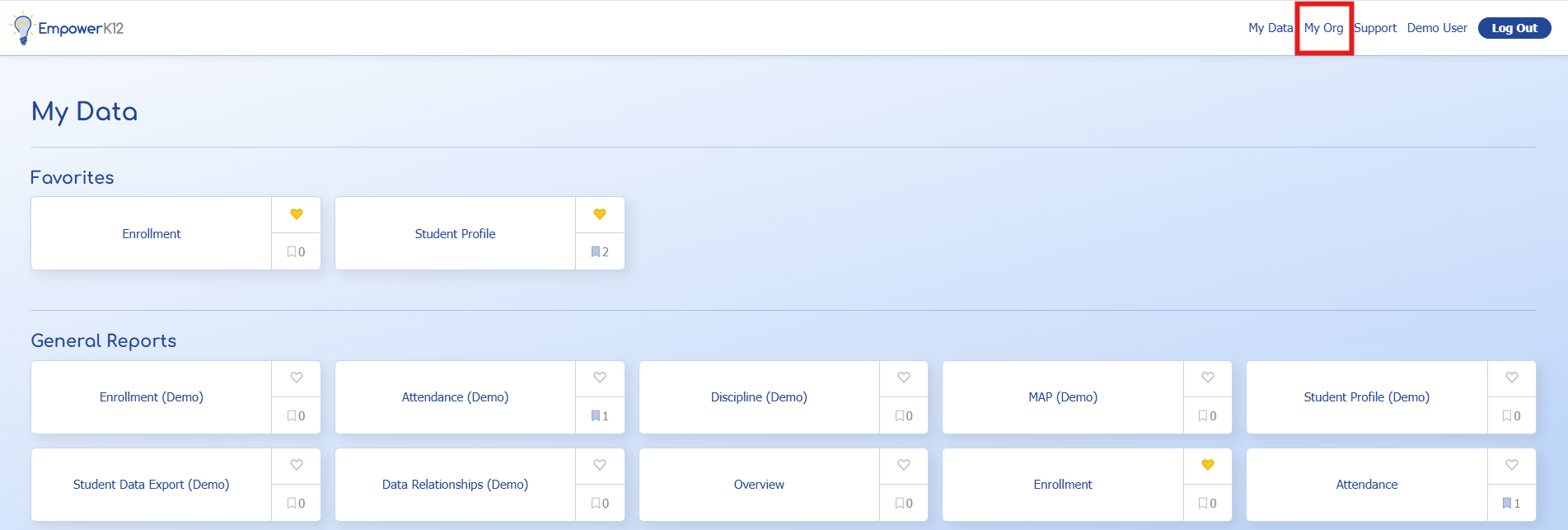
Please contact an EK12 staff member if you need to change the organization administrator for your organization.This page displays active users for your organization in the top section Members.
You may have to scroll down to see the second section of the page, Report Permission Groups, depending on how many users are in your organization. More on report permission groups below.
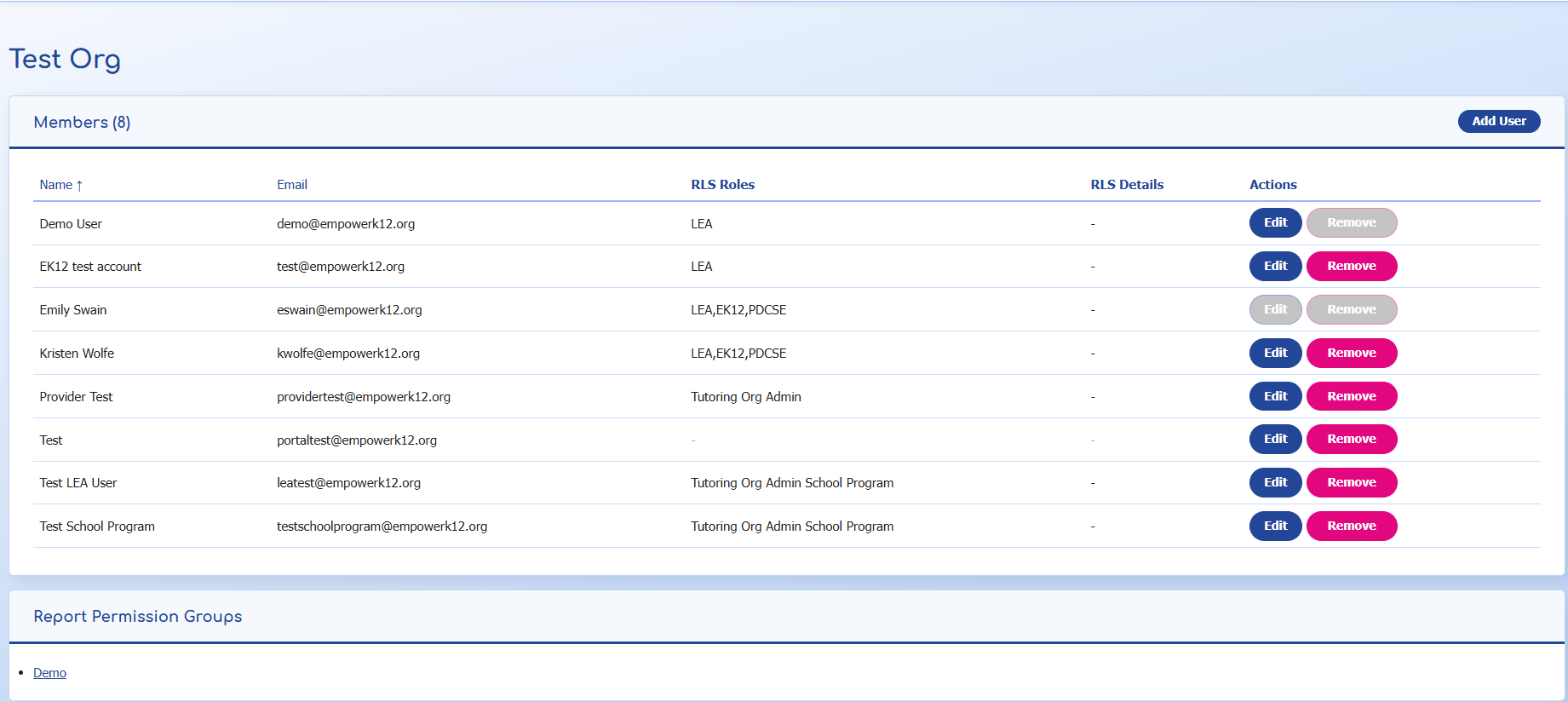
_____________________________________________________________________________________________________________________________________
How to Add New Users
1. Click "Add User" in the top right corner.
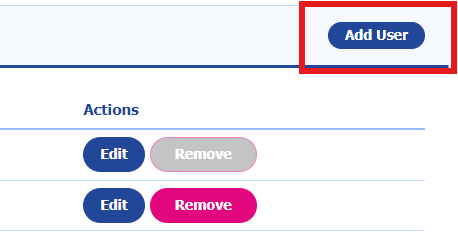
2. When the dialogue box appears, enter the new user's email address.
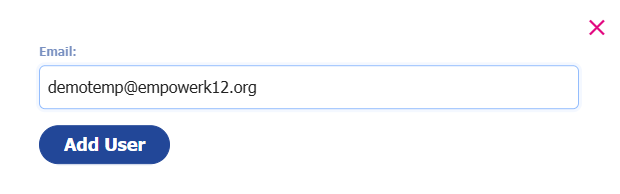
Note: Organization administrators may only add users with the correct domain for your organization. If you attempt to add a user with a different domain, you will receive an error message and will not be able to add the user.
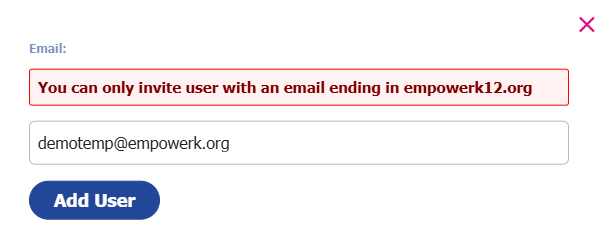
3. We recommend all users have an email address associated with your school's domain, but if you need assistance adding or removing a user with a different domain, contact an EK12 staff member.
Warning do not stop here!
New users will not be able to view reports on the My Data page until the steps below of editing the user and adding them to report permission groups are also completed.
_____________________________________________________________________________________________________________________________________
How to Edit a User
Under Actions click "Edit" on the row for the user.
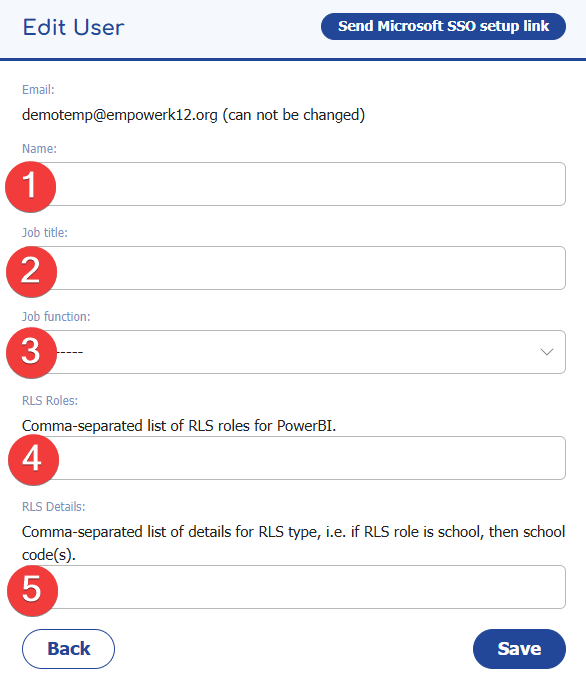
1. Name: Type the users full name. This will be the name that is displayed when the user signs on to the BOLD Improvement Portal. Users can edit their own names later, but cannot edit their email address.
2. Job title: Add a Job title for example: Principal, Assistant Principal, Teacher, Instructional Team, etc.
3. Job function: Select the most relevant Job function from the drop-down list.
4. RLS Roles: Determines which level of data a user can view when they open a Report. Read more about Row Level Security (RLS) to determine which option to assign to users in your organization.
- If a user has more than one RLS role, it should be separated by only a comma with no spaces.
- If a user has "Tutoring Org Admin" or "Tutoring Org Admin School Program" listed, do NOT edit the RLS role because these roles relate to CitySchools.
- Organization administrators should use the following RLS roles:
- LEA
- School
- Cohort
- Student
- Board
Warning!
If RLS Roles are not assigned, the staff member will see no data when they click on a Report. See Troubleshooting section below.
5. RLS Details: Should be left blank by default EXCEPT if the RLS Role of School, Cohort, OR Student has been selected.
- School - Enter the internal numerical SchoolId(s) for your organization for which specific school(s) the user should have access to. If more than one, separate by only a comma with no spaces (i.e. 1001,1002,1003).
- Cohort - Enter the internal cohort name(s) that match exactly the names from your SIS (i.e. Howard, Georgetown, etc. if your organization uses university names for homerooms). If more than one, separate by only a comma with no spaces (i.e. Howard,Georgetown).
- Student - Contact an EK12 staff member if you would like to discuss options for implementing this role.

_____________________________________________________________________________________________________________________________________
Report Permission Groups
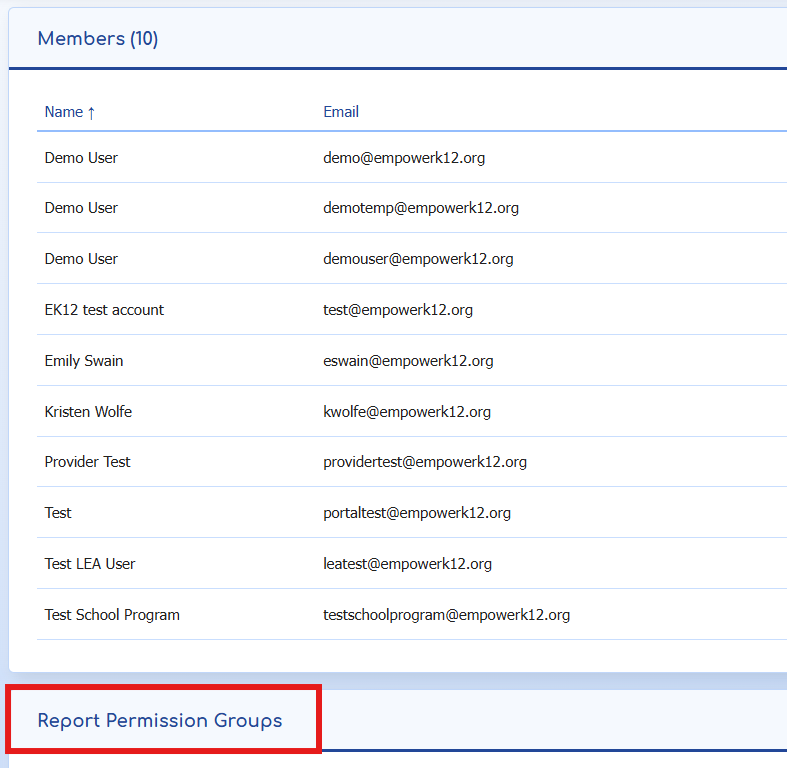
All Reports in the BOLD Improvement Portal are associated with a Report Permission Group. Most organization level Reports such as Enrollment and Attendance are associated with an organization report permission group.
1. Check which report permission groups are associated with your organization. Note: You may have to scroll past all the Members to see the Report Permission Groups section of the My Org page towards the bottom:
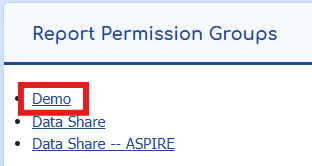
2. Click the hyperlink for the Report Permission Group name to check which users have access to which Reports.
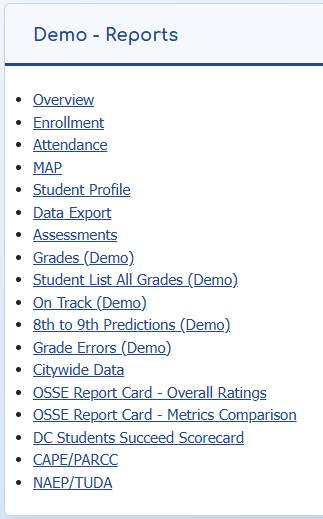
3. The top section Reports says the name of the Report Permission Group and the Reports associated with the report permission group.
4. Scroll down to the Manage Access section of the page.
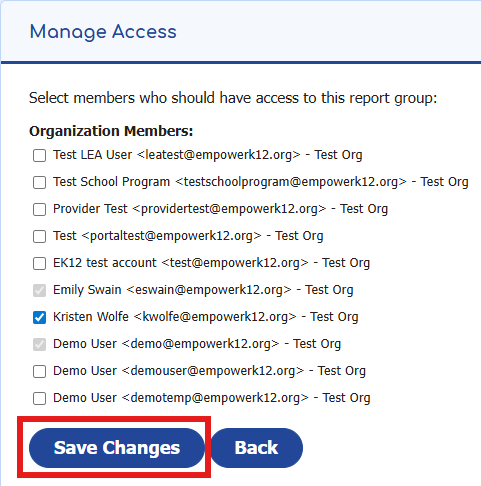
5. To add or remove users from the Report Permission Group, check or uncheck the user's name. If the name is unchecked, they cannot view any of the Reports listed in the top section of this Report Permission Group. In the example above, only three of the ten Organization Members have access to the "Demo" Report Permission Group.
6. Click "Save Changes" before navigating from the page.
_____________________________________________________________________________________________________________________________________
How to Remove a User
When a staff member leaves your organization, you should remove the user from the BOLD Improvement Portal so they no longer have access to your organization's data.
1. From the My Org page, navigate to the row for the user. Under Actions click the red "Remove" button.

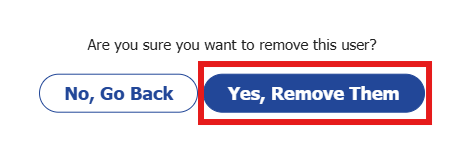
2. When prompted, click "Yes, Remove Them."
3. You will see a green banner at the top of the screen if you completed the steps successfully.

4. Note: When you remove a user from the organization, it will automatically remove the user from the report permission groups.
_____________________________________________________________________________________________________________________________________
Troubleshooting
The following day after adding, editing, and removing users, navigate to the LEA Management Report in your My Data page to check there are no errors. This report updates daily to display common user management entry mistakes that can be corrected by the organization administrator. Please see below for additional challenges.
Challenge: Staff member says they can log in to the BOLD Improvement Portal, but the Reports do not load with data, they are completely blank.
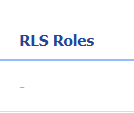
Next Step: Check that the user has been assigned a RLS Role. All users should have a role, the column should NOT be blank. If the user can view all data for your organization, assign them the role of "LEA."
Challenge: Staff member says they cannot see a specific Report on their My Data page.
Next Step: Check the Report Permission Group Page and make sure the user has access to the report permission group where the Report is located. The box next to their name and email should be checked.

Challenge: You want to add a user who does not have your organization's domain email address such as a board member using their own personal email.
Next Step: Either create an email address for the user with your school's domain or contact an EK12 staff member to add the user.
_____________________________________________________________________________________________________________________________________
Done managing users? To return to the My Data page, click the EmpowerK12 logo in the top left or the My Data link in the top right of the screen.
Was this article helpful?
That’s Great!
Thank you for your feedback
Sorry! We couldn't be helpful
Thank you for your feedback
Feedback sent
We appreciate your effort and will try to fix the article